
Using the Schedule
Managing Your Event with Scheduling
The Schedule feature is a powerful tool designed for event organizers and church media teams to pre-plan every segment of a service or event. It allows you to create a sequence of time slots, each with its own duration and specific settings, ensuring a seamless transition from one activity to the next.
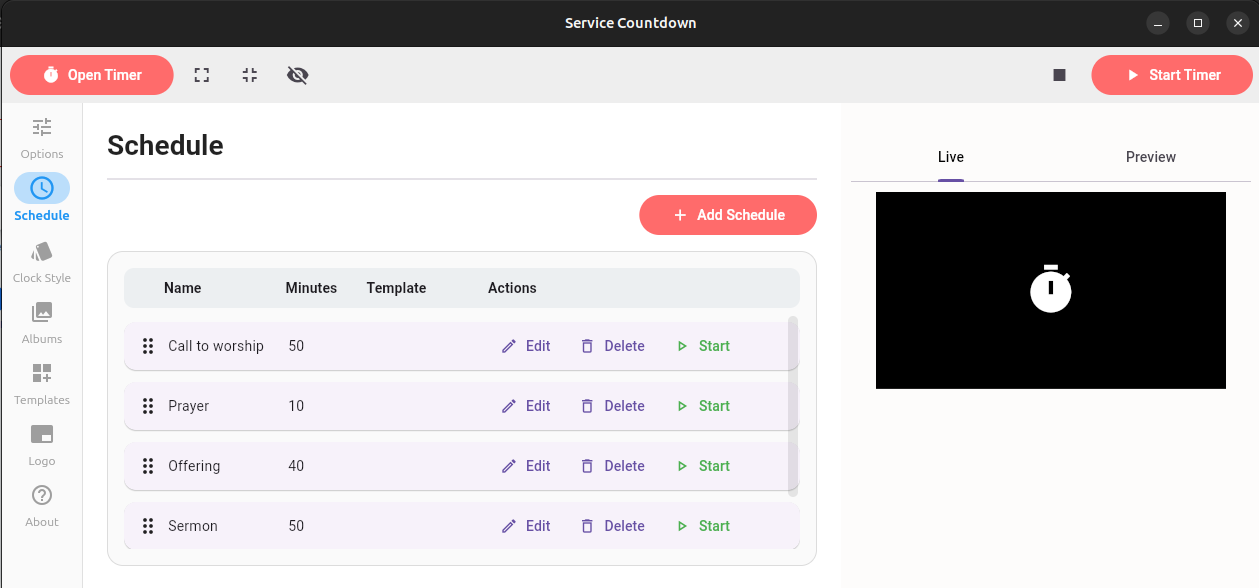
Key Features of Scheduling
Sequential Planning: Organize multiple countdowns in the order they will occur during your service.
Template Integration: Automatically load your preferred clock styles, messages, and logos by attaching a pre-saved Template to any schedule entry.
Dynamic Loading: When you click 'Play' on a scheduled item, it loads all saved template settings (excluding the templates original time settings) while using the specific duration you defined for that schedule entry.
Creating Your Schedule
Follow these steps to set up and manage your service timeline:
1. Access the Schedule Tab
Navigate to the Schedule section from the main sidebar of the application. You will see a list view where your planned segments will appear.
2. Add a New Schedule Entry
Click the Add Schedulebutton.
Name: Give your segment a name (e.g., "Pre-Service Countdown" or "Sermon Timer").
Minutes: Set the specific length of time for this segment in minutes.
3. Link a Template (Optional)
To ensure the visual style matches your segment, select a Template from the dropdown menu.
Note: This will apply the templates backgrond, logo, and message settings. The timer will still use the Minutesyou set in Step 2, not the duration saved in the template.
4. Organizing the Sequence
Reorder: Use the drag-and-drop handles to move entries up or down to match your service order.
Edit: Click the edit icon on any entry to adjust its title, time, or linked template.
Delete: Remove unnecessary entries by clicking the trash icon.
5. Running the Schedule
When your event begins:
Identify the current segment in your list.
Click the Play button next to that entry.
The application will immediately update the main display with the correct countdown time and the visual theme from your selected template.