
Main Interface Overview
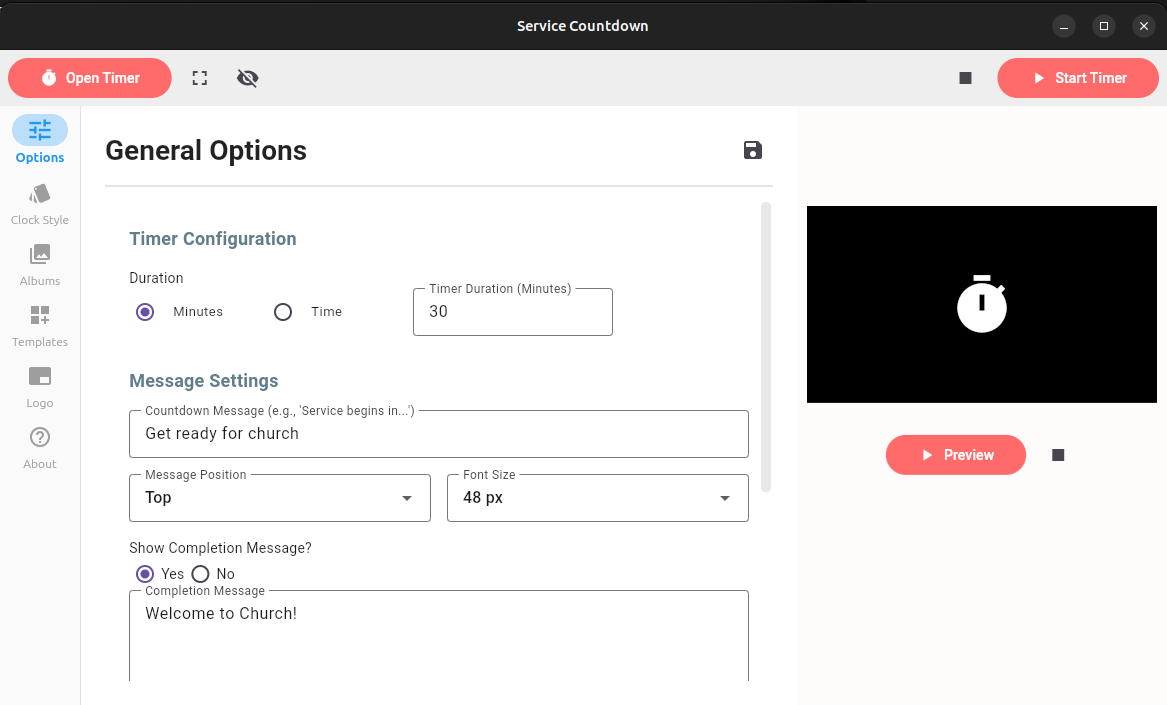
Upon launching, the application opens to the main window with a sidebar on the left, a central module display area, a preview box on the right, and a top bar for controls.
- Top BarButtons:
- Open Timer: This button launches the timer window on your selected screen. The timer window launches in hidden mode when the application first launches. If you close the timer window, you will need to click this button to reopen the window.
- Full-screen toggle: This button toggles the timer window in an out of full screen. Note that you can also toggle the full-screen mode by clicking on the timer window and using the 'Esc' key.
- Hide timer: This button hides or displays the timer window. If the timer is active, it will not stop it, the timer will continue counting down in the background.
- Stop: This stops an active timer.
- Start Timer: This starts a new countdown based on the current settings. Note that if a countdown is currently active, clicking this button will restart it. An active timer window needs to be already open for this button to work. If the timer is closed, click on the 'Open Timer' button first before clicking this button.
- Sidebar: Vertical menu with icons and labels for navigation:
- Options : General settings for timer, messages, slideshow, and display.
- Clock Style: Select timer display styles.
- Albums: Manage slideshow albums.
- Templates: Load, view, or delete configuration presets.
- Logo: Upload and configure a logo.
- About: Application info, version, and contact.
- Module Display Box: Central area that loads the selected sidebar module's content (e.g., timer configuration fields).
- Preview Box: Right-side panel showing a real-time preview of the countdown display, including clock, message, logo, and background slideshow. Includes a "Preview" button to refresh or test.
The interface is minimal and intuitive, with key actions accessible in 1-2 clicks.