
Managing Albums
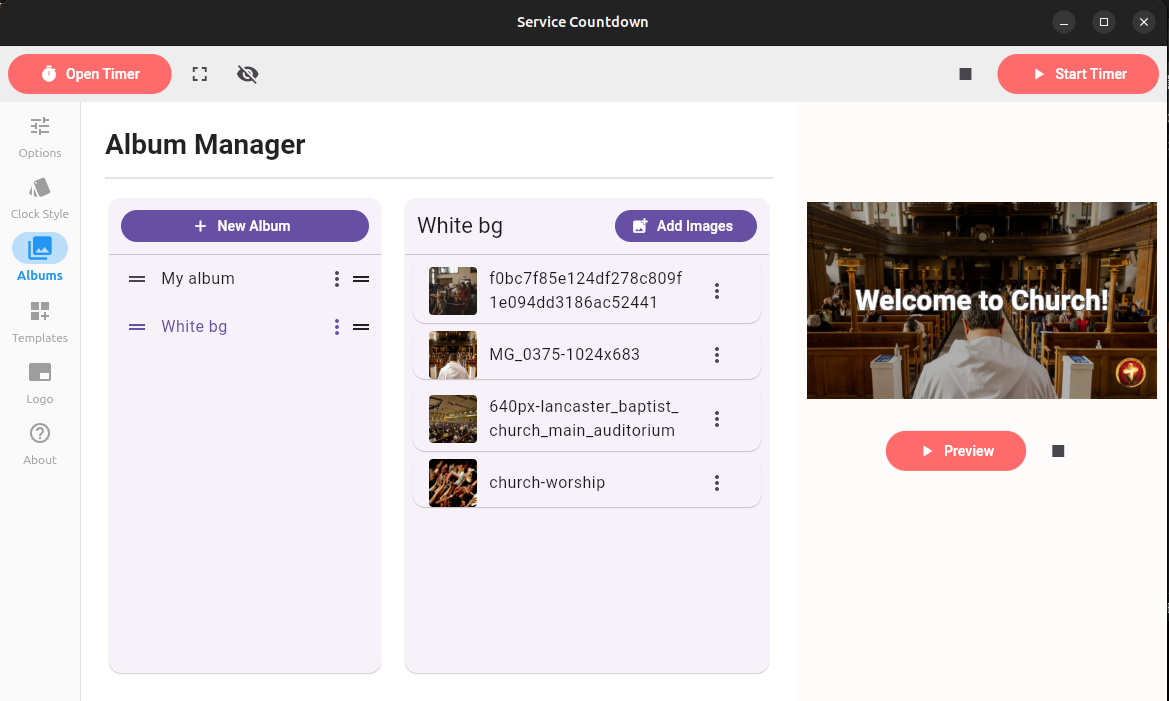
Service Countdown includes an album management feature that lets you create groups of images to serve as a background slideshow for your Countdown Timer.
Click on the 'New Album' button to create an album. Click on an existing album to display all images within it. You can also rename or delete an album by clicking on the dotted lines button beside the album name. You can drag an album up and down to change its position. This position will affect the way the albums are displayed in the albums dropdown on the options screen.
For each image in an album, you can rename, edit, or delete the image. You can also drag the images up and down in order to change their display order. This will set the order that the images will show in the countdown display.
Editing an image opens the image editor where you can perform multiple advanced image editing functions such as cropping, brush, text, rotation, filter, etc.
Click on the 'Add Images' button to add images to a selected album. You can select multiple images at once.