
Getting Started: Setting Up a Basic Countdown
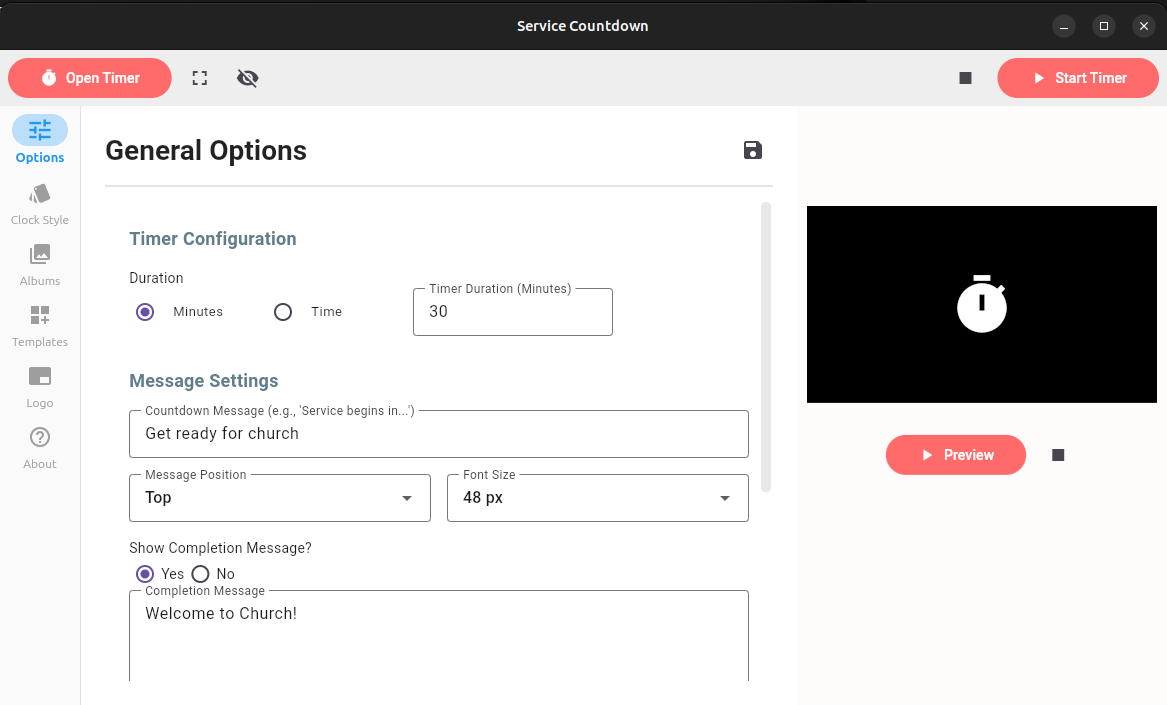
- Launch the application.
- Navigate to Options in the sidebar (default view).
- In the "Timer Configuration" section:
- Select "Minutes" and enter a duration (e.g. 30).
- Or select "Time" and choose a target time. Ensure you choose a future time.
- In "Message Settings":
- Enter a countdown message (e.g., "Get ready for church").
- Choose position (Top or Bottom) via dropdown.
- Set font size (e.g., 48 px) via dropdown.
- Enable "Show Completion Message" and enter text (e.g., "Welcome to Church!").
- In "Slideshow & Display":
- Set "Transition Speed (Seconds)" (e.g., 4).
- Select "Background Slideshow" from dropdown (e.g., "White bg" or a custom album).
- Choose "Target Display" from dropdown (e.g., "0x1467 (1366x768)" for a secondary screen).
- Click "Preview" to test in the preview box.
- Click "Start Timer" in the top bar to display on the selected screen.
- Use "Open Timer" to show the timer window if not already open.
- Monitor the countdown; it updates every second with smooth transitions.
- When it reaches zero, the clock disappears, and the completion message appears (if enabled).
To stop or hide the timer, use the top bar buttons.